
Running Real-Time AI Voice Assistants in Kubernetes
1. Introduction
AI-powered voice assistants are revolutionizing industries by enabling human-like, real-time interactions at scale. From automated call centers handling thousands of customer queries simultaneously to healthcare triage systems providing instant guidance, AI tutors offering personalized learning, and smart home assistants responding to voice commands with zero lag — the applications are endless.
The key to success in these scenarios is ultra-low latency. Users expect seamless, natural conversations, which demands real-time processing of audio streams. This is where WebRTC shines. As the open standard for browser and mobile real-time communication, WebRTC eliminates delays while ensuring broad device compatibility (as recently demonstrated by OpenAI’s own WebRTC-based voice API).
However, deploying such systems in-house is complex. A production-grade voice agent requires:
- A WebRTC media server (to manage audio/video streams)
- Signaling servers (to coordinate WebRTC connections)
- AI inference services (speech recognition, LLMs, text-to-speech)
- Authentication service, proxies, databases, monitoring and logging
- GDPR-compliant infrastructure (potentially avoid third-party API dependencies)
This is where Kubernetes becomes essential. By containerizing and orchestrating these components, you gain scalability, resilience, and control over data flows — critical for compliance-sensitive industries like healthcare or finance.
In this guide, we’ll deploy a self-hosted AI voice agent using open-source tools:
- LiveKit as the WebRTC media server, secured behind STUNner (a Kubernetes-native WebRTC gateway).
- LiveKit Agents to process audio streams and integrate with AI services.
We’ll use Azure AI Services for speech-to-text, LLM-powered dialogue, and text-to-speech since running these models would require quite heavy hardware configuration that might not be available for everyone. But these components are also replaceable with state-of-the-art open-source models (e.g. Llama, DeepSeek, Mistral, Whisper) for on-prem deployments.
By the end of this blog, you’ll have a Kubernetes-hosted voice agent that works in any browser, and can be extended to avoid third-party APIs in order to comply with strict data regulations. Let’s dive in!
2. Why Use LiveKit Agents for Real-Time AI?
LiveKit Agents provide a powerful open-source framework for building real-time AI applications by leveraging WebRTC for low-latency communication. WebRTC enables seamless audio and video streaming, ensuring that AI-driven interactions feel natural and responsive. LiveKit Agents act as AI-powered participants in a WebRTC session, receiving and processing voice input while generating real-time responses.
Benefits of LiveKit Agents:
- Browser-Based Interaction: WebRTC allows clients to connect using a web browser or a lightweight mobile web app, eliminating the need for complex thick clients.
- Low-Latency Communication: WebRTC also enables real-time interactions with minimal delay, making voice assistants more responsive.
- Seamless AI Service Integration: LiveKit Agents can easily connect with AI services such as speech recognition, text-to-speech, and large language models (LLMs) to enable intelligent conversations.
- Scalability: Deploying LiveKit Agents in Kubernetes allows for easy scaling and management in production environments.
- Open-Source Flexibility: LiveKit, WebRTC, and Kubernetes provide a fully open-source architecture that can be customized and extended based on specific needs.
Below is an overview of how LiveKit Agents interact with WebRTC and Azure AI Services:
- LiveKit Agent handles voice input/output, acting as an AI participant in the LiveKit room.
- Azure AI Services process the audio:
- Speech-to-Text (STT): Converts user speech into text.
- OpenAI-4o (LLM): Generates intelligent responses.
- Text-to-Speech (TTS): Converts the response back into speech for real-time interaction.
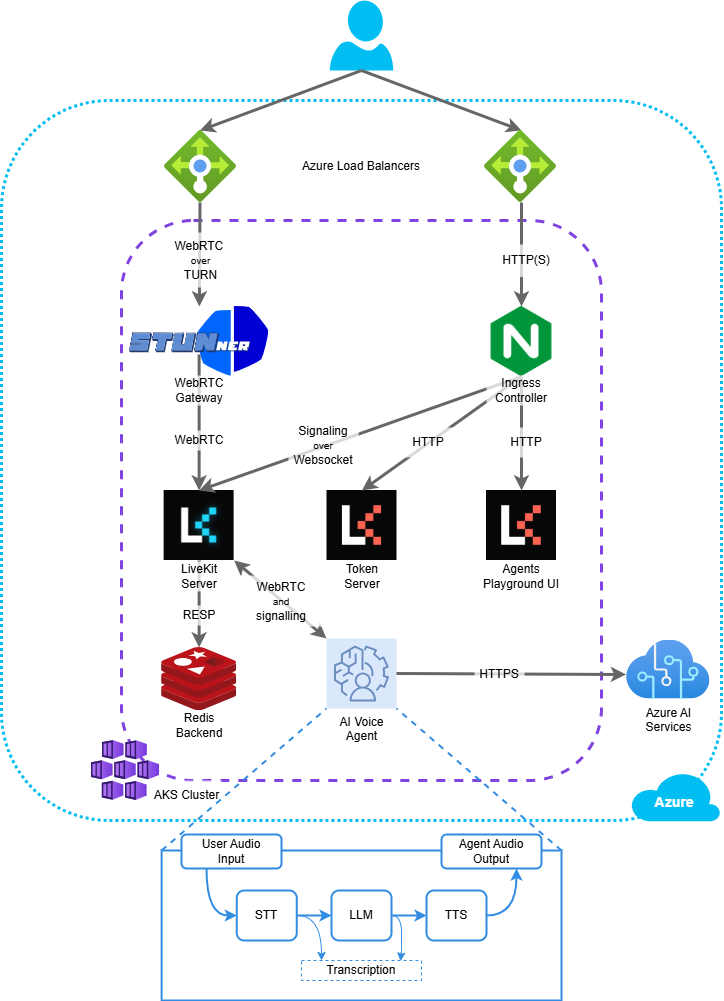 The architecture of running a Voice AI Agent in Kubernetes using Azure, STUNner and LiveKit.
This architecture ensures fast, intelligent, and natural voice interactions, making it suitable for a wide range of applications, from customer support to virtual assistants. Moreover, you have the option to execute custom functions and use Retrieval-Augmented Generation (RAG) during the LLM phase. Alternatively, you can also define multimodal agents which can generate voice output directly from the voice input — without the need of text conversation — using multimodal AI models. This can create even faster responses, however making RAG and custom functions harder to implement.
3. Creating a LiveKit Agent
A LiveKit Agent acts as an autonomous participant in a WebRTC-based LiveKit room. It listens to voice input, processes it through AI services, and generates spoken responses in real time. The agent uses Voice Activity Detection (VAD) to determine when a user is speaking, transcribes the speech into text, sends it to an LLM for response generation, and then converts the response back into speech.
There are many example code snippets included in the LiveKit Agents repository, here I’ll give a quick walk through on how to set up a basic voice agent pipeline.
Initializing the LLM System Prompt
Before processing user input, the agent sets up an initial conversation context for the LLM:
initial_ctx = llm.ChatContext().append(
  role="system",
  text=(
    "You are a voice assistant created by L7mp Technologies. Your interface with users will be voice. "
    "You should use short and concise responses, and avoiding usage of unpronounceable punctuation."
  ),
)
Setting Up the Voice Pipeline Agent
The agent is initialized as a simple voice pipeline starting with VAD (using Silero), speech-to-text (using Deepgram), an LLM for response generation (using OpenAI), and finally text-to-speech (also using OpenAI) to form a complete voice pipeline:
agent = VoicePipelineAgent(
  vad=ctx.proc.userdata["vad"],
  stt=deepgram.STT(model=dg_model),
  llm=openai.LLM(),
  tts=openai.TTS(),
  chat_ctx=initial_ctx,
)
To connect the given APIs, all you need to do is set up some environment variables with your API keys:
export DEEPGRAM_API_KEY=<your Deepgram API key>
export OPENAI_API_KEY=<your OpenAI API key>
Using Azure AI Services Instead of Deepgram and OpenAI
LiveKit Agents support various AI service providers. To use Azure AI Services for STT, LLM, and TTS, we can simply modify this initialization:
agent = VoicePipelineAgent(
  vad=ctx.proc.userdata["vad"],
  stt=azure.STT(),
  llm=openai.LLM.with_azure(),
  tts=azure.TTS(),
  chat_ctx=initial_ctx,
)
Starting the Conversation
Once initialized, the agent will begin every conversation by greeting the user:
await agent.say("Hey, how can I help you today?", allow_interruptions=True)In conclusion, setting up a LiveKit Agent involves the following quite straightforward steps:
- Initializing an LLM system prompt for conversational context.
- Configuring a voice processing pipeline with VAD, STT, LLM, and TTS.
- Starting the conversation with an initial message.
Next, we will cover how to deploy this agent in Kubernetes, ensuring scalability and efficient resource management.
4. Dockerizing the LiveKit Agent
Before the Kubernetes setup, we have to create a container which will run the agent. To containerize the LiveKit Agent, I created the following Dockerfile that installs dependencies, sets up the environment.
FROM python:3.13.1-slim

ENV PYTHONDONTWRITEBYTECODE=1
ENV PYTHONUNBUFFERED=1

ARG UID=10001

RUN adduser - disabled-password - gecos "" - home "/home/appuser" - shell "/sbin/nologin" - uid "${UID}" appuser
RUN apt-get update && \
    apt-get install -y gcc g++ python3-dev && rm -rf /var/lib/apt/lists/*

USER appuser
WORKDIR /home/appuser

COPY requirements.txt .
RUN python -m pip install - user - no-cache-dir -r requirements.txt

COPY . .
RUN python minimal_assistant.py download-files

ENTRYPOINT ["python", "minimal_assistant.py"]
CMD ["dev"]
Be sure to check the dependencies in requirements.txt, since it needs to contain all the LiveKit Agents Plugin libraries that are currently using. An example would look like this:
livekit-agents>=0.12.9
livekit-plugins-deepgram>=0.6.16
livekit-plugins-openai[vertex]>=0.10.10
livekit-plugins-silero>=0.7.4
livekit-plugins-rag>=0.2.3
livekit-plugins-azure>=0.5.3
python-dotenv~=1.0
aiofile~=3.8.8
Running the Container Locally
You can also run the agent locally for testing purposes as long as it can connect to a LiveKit server. First, you have to create an .env file to set up the environment variables that the agent will use:
LIVEKIT_URL=<your LiveKit server URL>
LIVEKIT_API_KEY=<your API Key>
LIVEKIT_API_SECRET=<your API Secret>
AZURE_SPEECH_KEY=<your Azure Speech service key>
AZURE_SPEECH_REGION=<the Azure region you deployed the service>
AZURE_OPENAI_ENDPOINT=<your Azure OpenAI endpoint, e.g. https://<your project>-<region>.openai.azure.com/>
AZURE_OPENAI_API_KEY=<your Azure OpenAI key>
OPENAI_API_VERSION=<HTTP API version, e.g. 2024–08–01-preview>
Then you can build and run the container:
docker build -t livekit-agent .
docker run --rm --env-file ./.env livekit-agent
Next, we’ll deploy this container in Kubernetes for scalability.
5. Deploying in Kubernetes
Kubernetes provides a scalable, fault-tolerant, and easily manageable environment for any containerized application, therefore it is a perfect choice to deploy LiveKit Agents. Running LiveKit and AI services in Kubernetes allows for:
- Automated scaling based on demand.
- Efficient resource allocation and load balancing.
- Simplified deployment on any cloud, on-prem or hybrid environment.
Deploying the Agent in Kubernetes
A complete Azure deployment is provided in a GitHub repository, including:
- Setting up an Azure Cognitive Services Account for deploying a Speech Service (for STT and TTS) and an OpenAI model (for LLM) using Terraform.
- Setting up a Kubernetes cluster in Azure (AKS).
- Deployment YAML for running a LiveKit server and the created agent.
- Secret management for the API keys using Kubernetes secrets.
- Environment variable setup for Azure AI Services (Speech SDK, Azure OpenAI LLM).
You can also find a complete guide for running LiveKit behind STUNner in our docs, and I have a previous blog post on running LiveKit in AWS EKS. Here, I will only highlight the main steps of the deployment.
Assuming you have a working Kubernetes setup, you’ll need the following components for this demo:
- STUNner: as a Kubernetes gateway for the WebRTC traffic.
- LiveKit Server: the main service that hosts the audio/video rooms.
- Demo Token Server: simple service that generates authentication tokens for LiveKit.
- Agents Playground: a prototype UI to test the agent.
- LiveKit Agent: the agent itself that you created.
First, let’s install STUNner to serve as a TURN server for LiveKit, which can efficiently handle the WebRTC peer connections:
helm repo add stunner https://l7mp.io/stunner
helm repo update
helm install stunner stunner/stunner-gateway-operator \
 - namespace stunner-system \
 - create-namespace
kubectl create namespace stunner
kubectl apply -f manifests/stunner.yaml
Wait until all pods become ready, and check the ExternalIP of the created webrtc-gateway service:
user@localhost:~$ kubectl get service -n stunner
NAME            TYPE          CLUSTER-IP   EXTERNAL-IP   PORT(S)                        AGE
webrtc-gateway  LoadBalancer  10.97.8.4    126.12.89.53  3478:31017/UDP,3478:31017/TCP  2d
In this example Azure provisioned the Public IP 126.12.89.53 for STUNner. We have to set this address as the TURN server for the LiveKit server in it’s config.yaml file:
apiVersion: v1
kind: ConfigMap
metadata:
  name: livekit-server
data:
  config.yaml: |
    keys:
      access_token: secret
    log_level: debug
    port: 7880
    redis:
      address: redis:6379
    rtc:
      port_range_end: 60000
      port_range_start: 50000
      tcp_port: 7801
      turn_servers:
      - credential: stunnerpassword
        host: 126.12.89.53 # match the public IP
        port: 3478
        protocol: udp
        username: stunneruser
      use_external_ip: false
    turn:
      enabled: false
Next, be sure to set up your own domains in the `ingress` resource. We’ll need two separate domains for this setup:
- LiveKit server: for WebRTC signalling communication and LiveKit auth token generation.
- Agents UI: for the primary frontend to access the voice agent.
An example ingress would look like this:
apiVersion: networking.k8s.io/v1
kind: Ingress
metadata:
  name: livekit-ingress
  annotations:
    cert-manager.io/cluster-issuer: "letsencrypt-prod"
    nginx.ingress.kubernetes.io/ssl-redirect: "true"
spec:
  ingressClassName: nginx
  tls:
  - hosts:
      - livekit.azure.stunner.cc
      - agent-ui.azure.stunner.cc
    secretName: livekit-tls
  rules:
  - host: livekit.azure.stunner.cc
    http:
      paths:
      - path: /
        pathType: Prefix
        backend:
          service:
            name: livekit-server
            port:
              number: 443
      - path: /api/token
        pathType: Prefix
        backend:
          service:
            name: lk-token
            port:
              number: 80
  - host: agent-ui.azure.stunner.cc
    http:
      paths:
      - path: /
        pathType: Prefix
        backend:
          service:
            name: agent-ui
            port:
              number: 80
Finally, create a secret for the agent that will contain the necessary credentials for both the LiveKit server and the Azure AI APIs:
apiVersion: v1
kind: Secret
metadata:
  name: livekit-agents-secrets
type: Opaque
stringData:
  LIVEKIT_URL: wss://livekit.azure.stunner.cc #match your domain
  LIVEKIT_API_KEY: access_token #match your api key
  LIVEKIT_API_SECRET: secret #match your secret
  AZURE_SPEECH_KEY: <your Azure Speech service key>
  AZURE_SPEECH_REGION: <the Azure region you deployed the AI service>
  AZURE_OPENAI_ENDPOINT: <your Azure OpenAI endpoint, e.g. https://<your project>-<region>.openai.azure.com/>
  AZURE_OPENAI_API_KEY: <your Azure OpenAI key>
  OPENAI_API_VERSION: <HTTP API version, e.g. 2024-08-01-preview>
With these simple configurations, the LiveKit Agent can seamlessly operate in a Kubernetes cluster while integrating with Azure AI Services for real-time voice interactions. You can now navigate to the Agent UI in your browser and check it out for yourself:
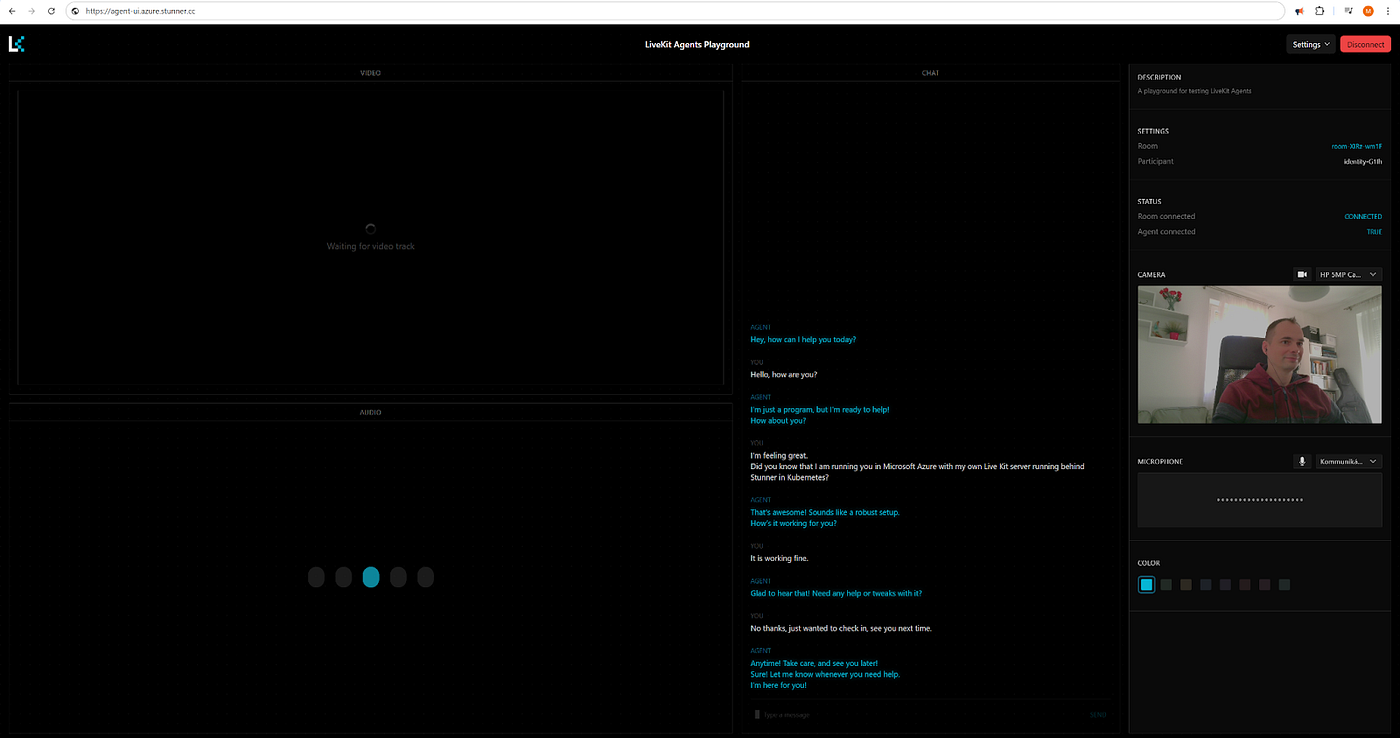 The deployed Agents Playground UI.
6. Conclusion
The architecture described in this guide offers a powerful and scalable solution for building real-time AI-driven voice assistants. By leveraging WebRTC and LiveKit, the system ensures low-latency interactions, while Kubernetes enables efficient deployment and scaling. The flexibility of integrating with Azure AI Services allows for advanced AI capabilities, but the entire solution can also be self-hosted using open-source AI models.
For those looking to extend this system, consider exploring additional AI models, including open-source and multimodal options. In production environments, scalability and security must be addressed, such as using Azure Key Vault for secret management instead of Kubernetes secrets, and OIDC authentication for LiveKit.
To get started, check out the GitHub repository containing the full deployment scripts. If you’re interested in deeper collaboration on real-time AI agent pipelines, contact us at L7mp Technologies!
